Advanced SQL Queries in VB6
Master advanced SQL techniques including WHERE clauses, pattern matching, and sorting for powerful database queries
Lesson Overview
Key Takeaway
The WHERE keyword enables precise filtering of database records based on specific criteria, while ORDER BY provides control over result sorting - essential tools for efficient data retrieval.
Welcome to Lesson 28 of our Visual Basic 6 Tutorial! Building on the SQL fundamentals from Lesson 27, this lesson dives deeper into advanced SQL query techniques. You'll learn how to filter data using the WHERE clause, perform pattern matching with LIKE, and sort results with ORDER BY.
28.1 The WHERE Clause
The WHERE clause is one of SQL's most powerful features, allowing you to filter records based on specific conditions. The basic syntax is:
SELECT field1, field2 FROM TableName
WHERE condition
28.1.1 Comparison Operators
SQL supports various operators for creating conditions:
| Operator | Description | Example |
|---|---|---|
| = | Equal to | WHERE Year = 2008 |
| <> | Not equal to | WHERE Author <> 'Liew Voon Kiong' |
| > | Greater than | WHERE Price > 50 |
| < | Less than | WHERE Price < 30 |
| >= | Greater than or equal | WHERE Year >= 2010 |
| <= | Less than or equal | WHERE Price <= 80 |
28.2 Building the Query Interface
We'll create an advanced query interface using the book database from Lesson 27. The interface includes a textbox for entering SQL queries and a DataGrid for displaying results.

28.2.1 Implementation Steps
1Setup ADO Control
Set Command Type to 1-adCmdText and Command Text to SELECT * FROM book
2Add Query Textbox
Place a textbox above the DataGrid for entering SQL queries
3Create Query Button
Add a button to execute the SQL query from the textbox
Private Sub cmdQuery_Click()
    Adodc1.RecordSource = txtSQL.Text
    Adodc1.Refresh
    Adodc1.Caption = Adodc1.RecordSource
End Sub
28.3 Advanced Query Examples
Using our query interface, we can execute various advanced SQL queries:
28.3.1 Query by Author
Retrieve books by a specific author:
SELECT Title, Author FROM book
WHERE Author='Liew Voon Kiong'

28.3.2 Query by Year
Find books published after a specific year:
SELECT * FROM book
WHERE Year > 2005

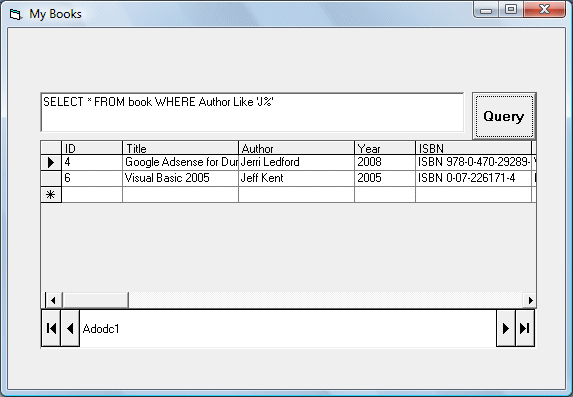
28.3.3 Pattern Matching with LIKE
Use the LIKE operator with wildcards for flexible searching:
-- Authors starting with 'J'
SELECT * FROM book
WHERE Author LIKE 'J%'
28.4 Sorting with ORDER BY
The ORDER BY clause allows you to sort results in ascending (ASC) or descending (DESC) order:
28.4.1 Sorting Authors Ascending
Sort authors alphabetically:
SELECT Title, Author FROM book
ORDER BY Author ASC

28.4.2 Sorting Prices Descending
Sort books from highest to lowest price:
SELECT Title, Price FROM book
ORDER BY Price DESC

Lesson Summary
In this lesson, you've mastered advanced SQL query techniques in VB6:
WHERE Clause
Filter records using comparison operators
Pattern Matching
Use LIKE with wildcards for flexible searching
Result Sorting
Organize data with ORDER BY (ASC/DESC)
Query Interface
Build a flexible SQL query executor
Important Note
Combining WHERE filters with ORDER BY sorting creates powerful queries that can extract and organize exactly the data you need from large databases.
Practice Exercises
Strengthen your advanced SQL skills with these exercises:
Exercise 1: Combined Conditions
Create a query that shows books priced between $20 and $50
Exercise 2: Multiple Sorts
Sort books by publisher ascending, then by price descending
Exercise 3: Advanced Pattern Matching
Find titles containing "Visual" but not "Basic"
Exercise 4: Year Range
Show books published between 2000 and 2010, sorted by year
Exercise 5: Case-Insensitive Search
Implement a case-insensitive author search
Next Lesson
Continue your VB6 journey with Lesson 29: Building an E-library Application.
Related Resources

Visual Basic 6 Made Easy
Start your programming journey with Visual Basic 6. Learn how to build Windows applications step-by-step using an easy and beginner-friendly approach.
- Perfect for beginners
- Learn core programming concepts
- Build real VB6 applications

Visual Basic 2026 Made Easy
Upgrade to modern Visual Basic with VB.NET, .NET 10, and Visual Studio 2026. Build real-world applications with modern tools and AI-powered development.
- Modern VB.NET development
- Hands-on projects and real apps
- GitHub Copilot & AI integration
🚀 Ready for the Next Level?
After learning the basics with VB6 Made Easy and upgrading to VB2026 Made Easy, continue your journey into advanced professional development.

Advanced VB.NET Programming
Take your VB.NET skills to the next level. Learn advanced programming techniques, real-world architectures, and professional development practices using modern .NET.
Best For:
- After VB6 or VB.NET fundamentals
- Intermediate to advanced learners
- Developers building real-world systems
🚀 Migrating from VB6 to VB.NET
Still using or learning classic Visual Basic 6? This practical step-by-step guide shows you how to migrate legacy VB6 applications to modern VB.NET with Visual Studio 2026 and .NET 10.

VB6 to Modern VB.NET Made Easy
A practical step-by-step guide to migrating legacy Visual Basic 6 applications to VB.NET with Visual Studio 2026 and .NET 10.
- Designed for VB6 programmers and legacy app maintainers
- Clear migration guidance from classic VB to modern .NET
- Perfect bridge between VB6 fundamentals and VB.NET development
🚀 Move to Modern VB.NET
Visual Basic 6 is your foundation — but modern development uses VB.NET with .NET and Visual Studio 2026.
Start VB.NET Tutorial →