Managing Database Using DataGrid Control
Learn to display and edit database records efficiently with the powerful DataGrid control
Lesson Overview
Key Takeaway
The DataGrid control provides an efficient way to display and edit entire database recordsets in a spreadsheet-like format, making it ideal for managing database content.
Welcome to Lesson 26 of our Visual Basic 6 Tutorial! In this lesson, you'll learn how to manage databases using the DataGrid control, which offers a powerful way to display and edit entire database recordsets in a tabular format. Unlike textboxes that display one record at a time, the DataGrid shows multiple records simultaneously.
26.1 Introduction to DataGrid Control
The DataGrid control is a powerful component for database applications that allows users to:
Display Entire Recordsets
Show multiple database records at once
Edit Records Directly
Modify data directly in the grid interface
Navigate Records
Scroll through large datasets easily
26.1.1 Adding DataGrid Control to Toolbox
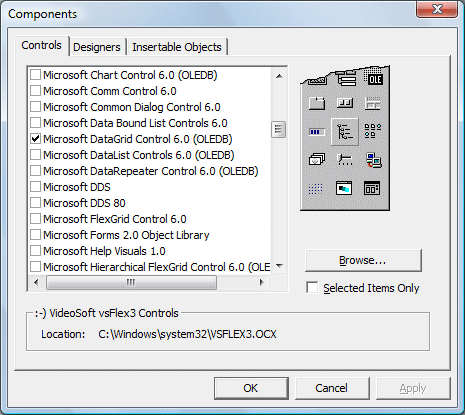
To use the DataGrid control, you need to add it to your toolbox:
1Open Components Dialog
Press Ctrl+T to open the Components dialog box
2Select Controls
Check Microsoft DataGrid Control 6.0 and Microsoft ADO Data Control 6.0
3Confirm
Click OK to add controls to your toolbox
26.2 Building a Library Database Application
We'll create a book database application to demonstrate DataGrid capabilities. First, create a database file using Microsoft Access named books.mdb with a table named book containing fields like ISBN, Title, Author, Year, etc.

26.2.1 Designing the Interface
After adding the DataGrid and ADO controls to your form:


26.3 Connecting to Database
To connect ADO to the database file:
1Set ConnectionString
Right-click ADO control, open properties, and set ConnectionString
2Select Database
Click Build, choose database provider, and select your database file
3Set RecordSource
In RecordSource tab, set Command Type to adCmdTable and Table to book


26.4 Configuring DataGrid Properties
After connecting the database to ADO, configure the DataGrid:
DataSource Property
Set to the name of your ADO control (e.g., Adodc1)
AllowAddNew Property
Set to True to allow users to add new records
AllowDelete Property
Set to True to allow users to delete records
AllowUpdate Property
Set to True to allow users to edit existing records
26.5 DataGrid Programming Techniques
While the DataGrid provides many features without code, you can enhance it with programming:
26.5.1 Refreshing Data
Private Sub cmdRefresh_Click()
    Adodc1.Refresh
    DataGrid1.Refresh
End Sub
26.5.2 Customizing Columns
Private Sub Form_Load()
    ' Set column widths
    DataGrid1.Columns(0).Width = 1200  ' ISBN
    DataGrid1.Columns(1).Width = 3000  ' Title
    DataGrid1.Columns(2).Width = 2000  ' Author

    ' Set column headers
    DataGrid1.Columns(0).Caption = "ISBN Number"
    DataGrid1.Columns(1).Caption = "Book Title"
    DataGrid1.Columns(2).Caption = "Author"
End Sub
Lesson Summary
In this lesson, you've learned how to manage databases using DataGrid Control in VB6:
DataGrid Advantages
Efficient display and editing of entire recordsets
Setup Process
Adding DataGrid control to toolbox and connecting to databases
Database Connection
Configuring ADO control and DataGrid properties
Programming Techniques
Customizing columns and refreshing data programmatically
Important Note
The DataGrid control provides a spreadsheet-like interface that significantly simplifies database management compared to using multiple textboxes for each field.
Practice Exercises
Enhance your DataGrid application with these exercises:
Exercise 1: Column Formatting
Customize the appearance of your DataGrid columns (widths, headers, alignment)
Exercise 2: Search Function
Add a search feature to filter records in the DataGrid
Exercise 3: Record Validation
Implement validation for DataGrid edits to prevent invalid data
Exercise 4: Data Export
Add functionality to export DataGrid content to a CSV file
Exercise 5: Sorting
Implement column header click sorting functionality
Next Lesson
Continue your VB6 journey with Lesson 27: SQL Queries.
Related Resources

Visual Basic 6 Made Easy
Start your programming journey with Visual Basic 6. Learn how to build Windows applications step-by-step using an easy and beginner-friendly approach.
- Perfect for beginners
- Learn core programming concepts
- Build real VB6 applications

Visual Basic 2026 Made Easy
Upgrade to modern Visual Basic with VB.NET, .NET 10, and Visual Studio 2026. Build real-world applications with modern tools and AI-powered development.
- Modern VB.NET development
- Hands-on projects and real apps
- GitHub Copilot & AI integration
🚀 Ready for the Next Level?
After learning the basics with VB6 Made Easy and upgrading to VB2026 Made Easy, continue your journey into advanced professional development.

Advanced VB.NET Programming
Take your VB.NET skills to the next level. Learn advanced programming techniques, real-world architectures, and professional development practices using modern .NET.
Best For:
- After VB6 or VB.NET fundamentals
- Intermediate to advanced learners
- Developers building real-world systems
🚀 Migrating from VB6 to VB.NET
Still using or learning classic Visual Basic 6? This practical step-by-step guide shows you how to migrate legacy VB6 applications to modern VB.NET with Visual Studio 2026 and .NET 10.

VB6 to Modern VB.NET Made Easy
A practical step-by-step guide to migrating legacy Visual Basic 6 applications to VB.NET with Visual Studio 2026 and .NET 10.
- Designed for VB6 programmers and legacy app maintainers
- Clear migration guidance from classic VB to modern .NET
- Perfect bridge between VB6 fundamentals and VB.NET development
🚀 Move to Modern VB.NET
Visual Basic 6 is your foundation — but modern development uses VB.NET with .NET and Visual Studio 2026.
Start VB.NET Tutorial →